
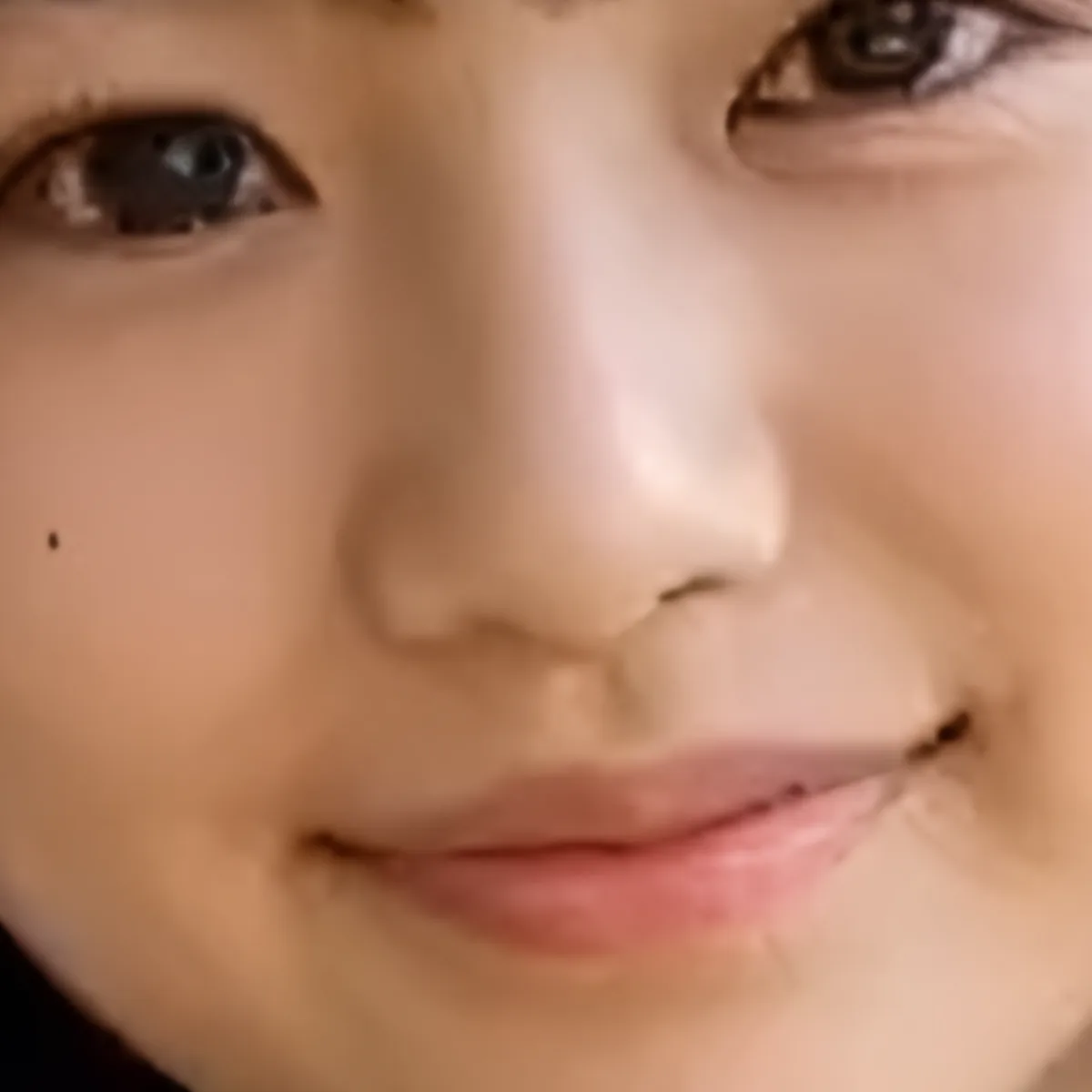
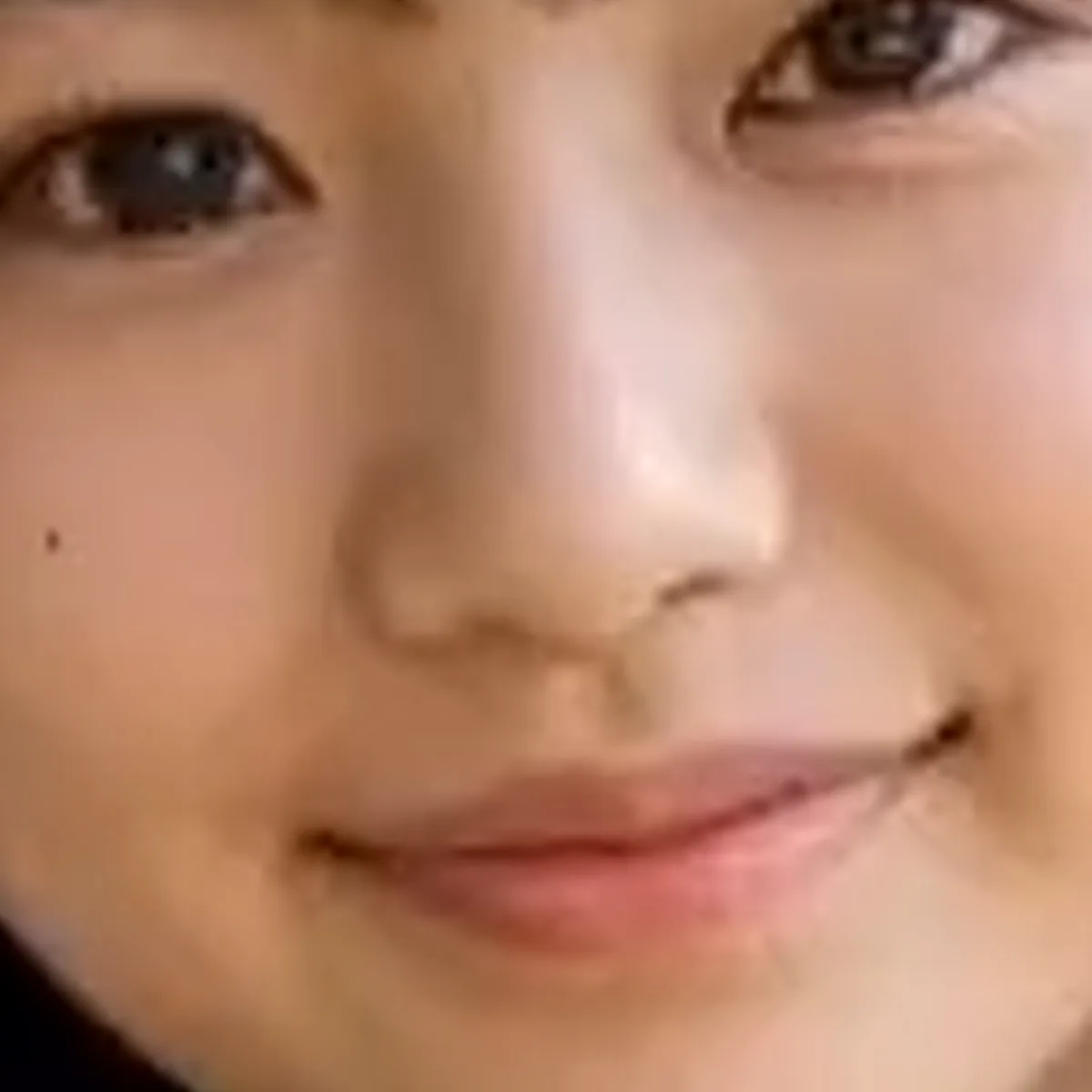
Eyes and bangs
Compare lashes, bangs and other face details.
YOUR FAVOURITE MOMENTS
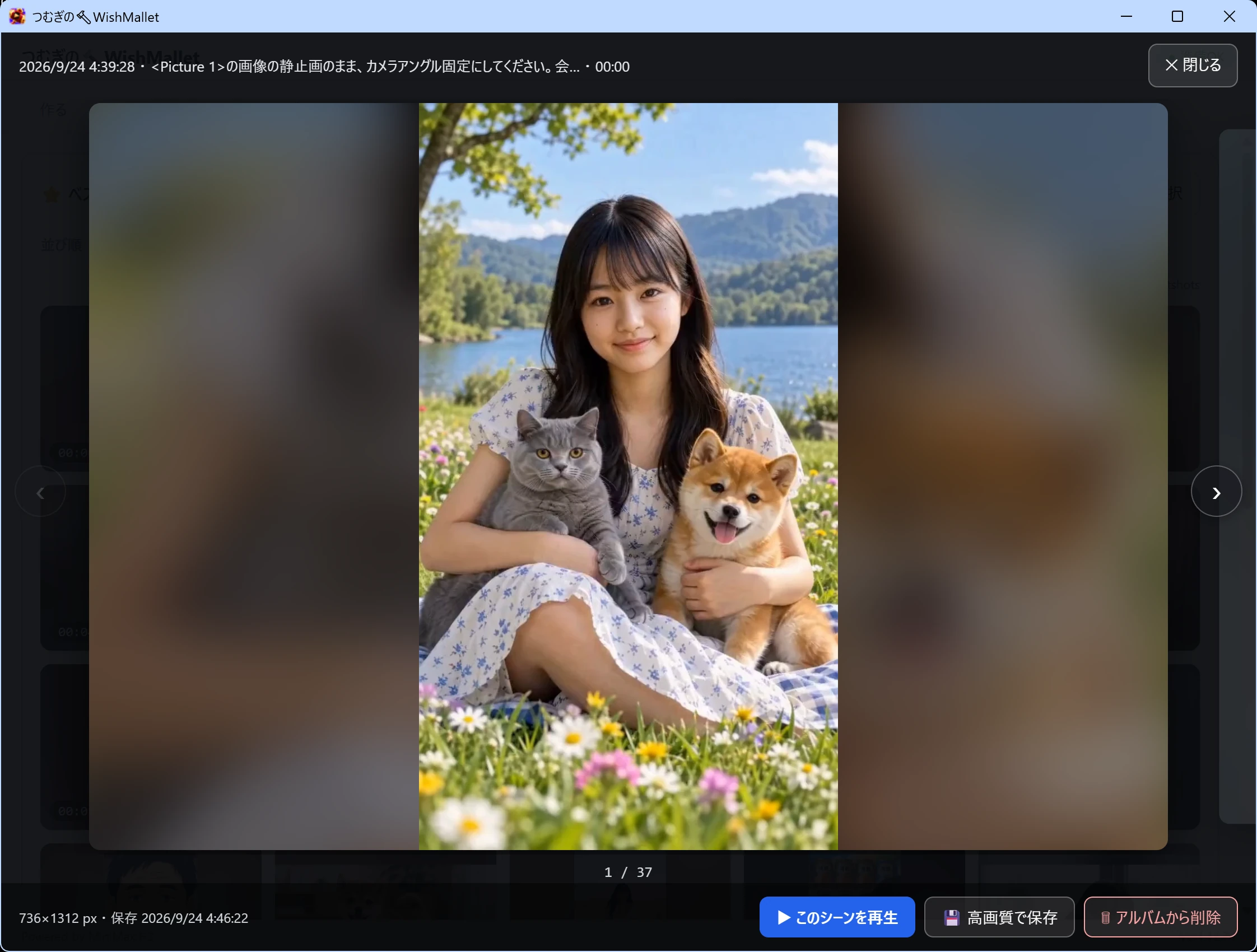
When a WishMallet video has one frame you want to keep as a photo, save it as a high-resolution image you can use for a book cover or poster.
Choose a favourite frame, let AI enhance it, and save as PNG. Pick the use — Kindle cover, Amazon KDP, poster, framed art — and skip the pixel maths and 300 PPI know-how.
“Save in high quality” does the following for you:
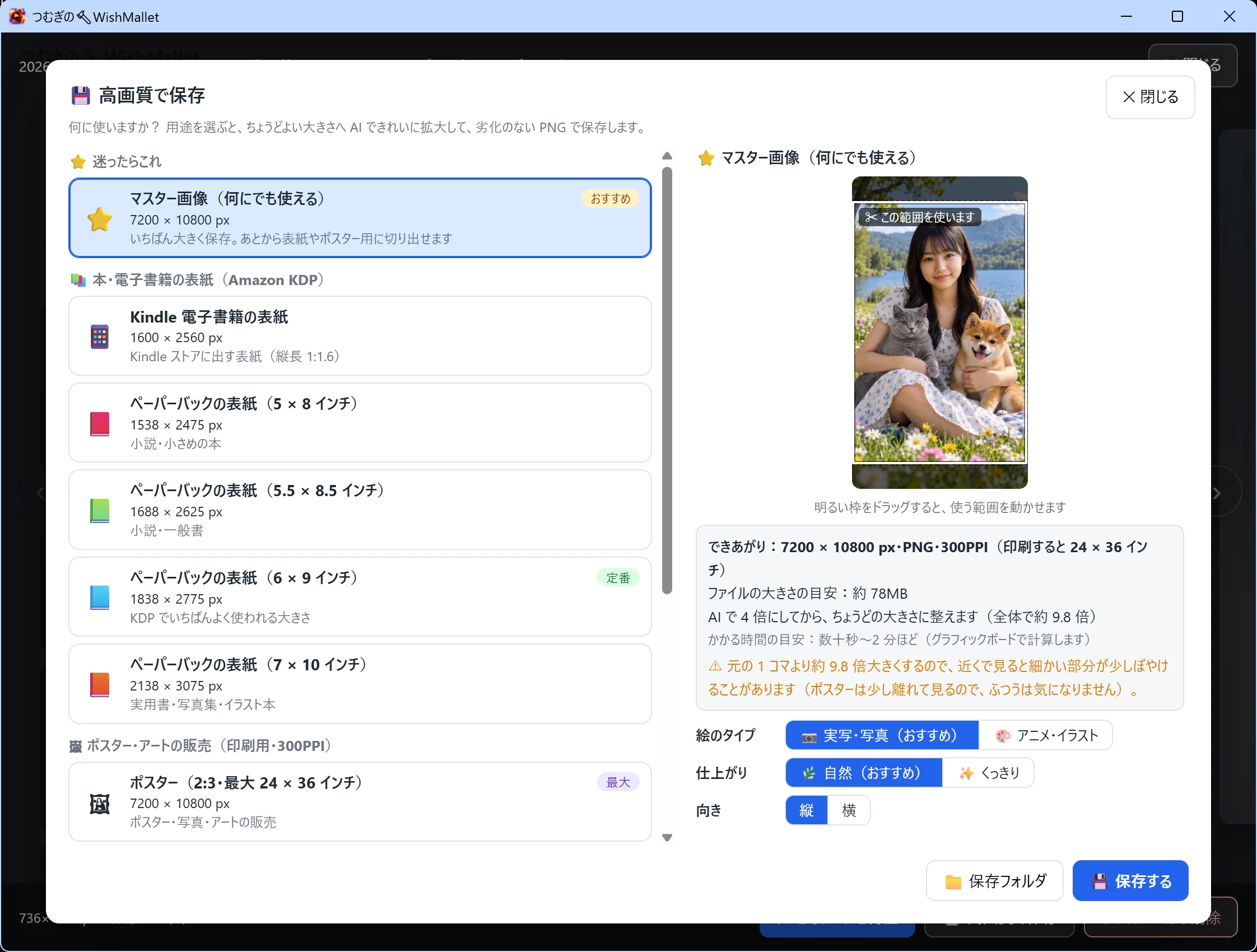
In the free trial you can check the list of uses and the finish preview. Saving a high-quality PNG is a full-version feature.
Pulling a frame and stretching it to poster size can blur edges and fine detail. WishMallet does more than simple stretch: AI enhances the frame, then fits the size for your use and saves a PNG.
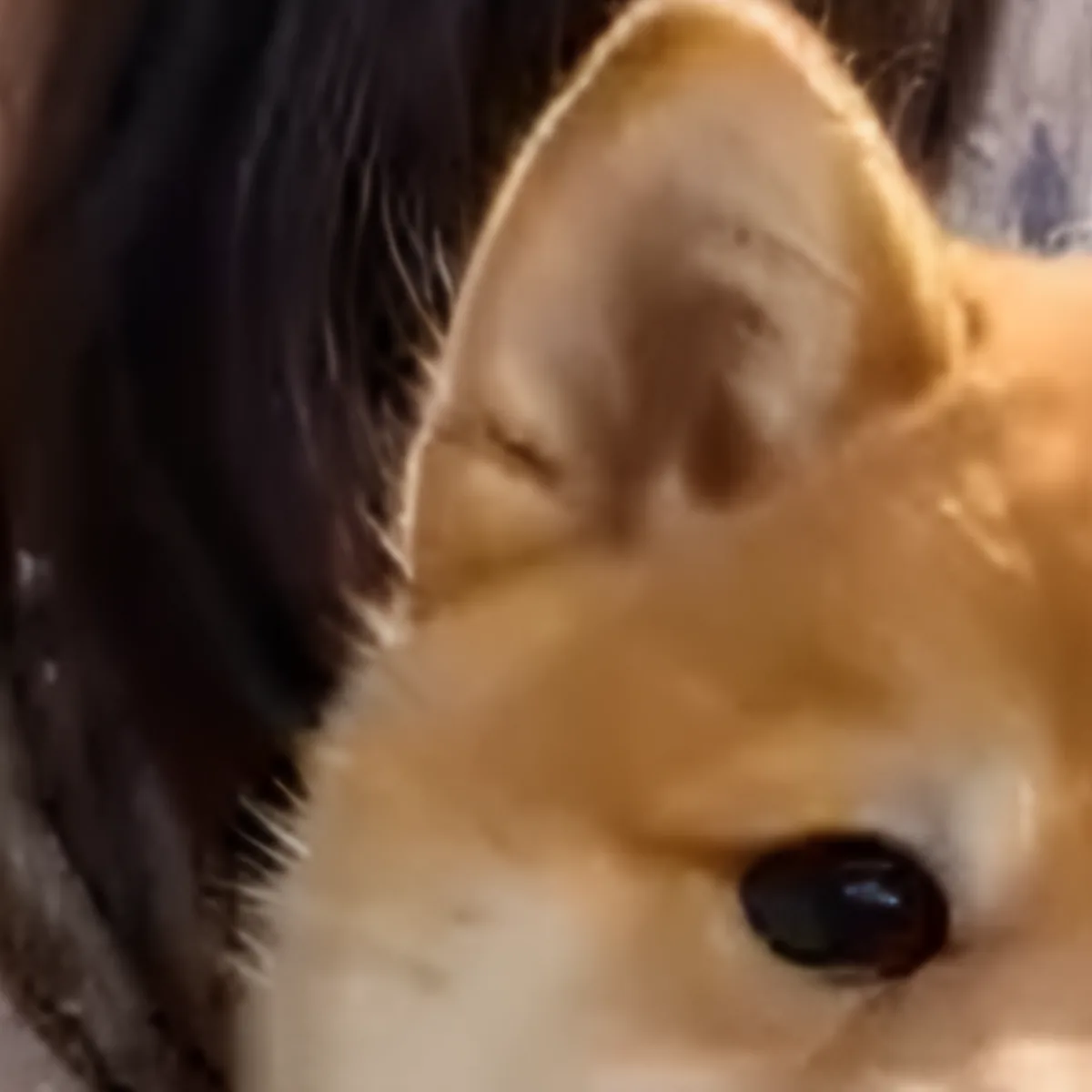
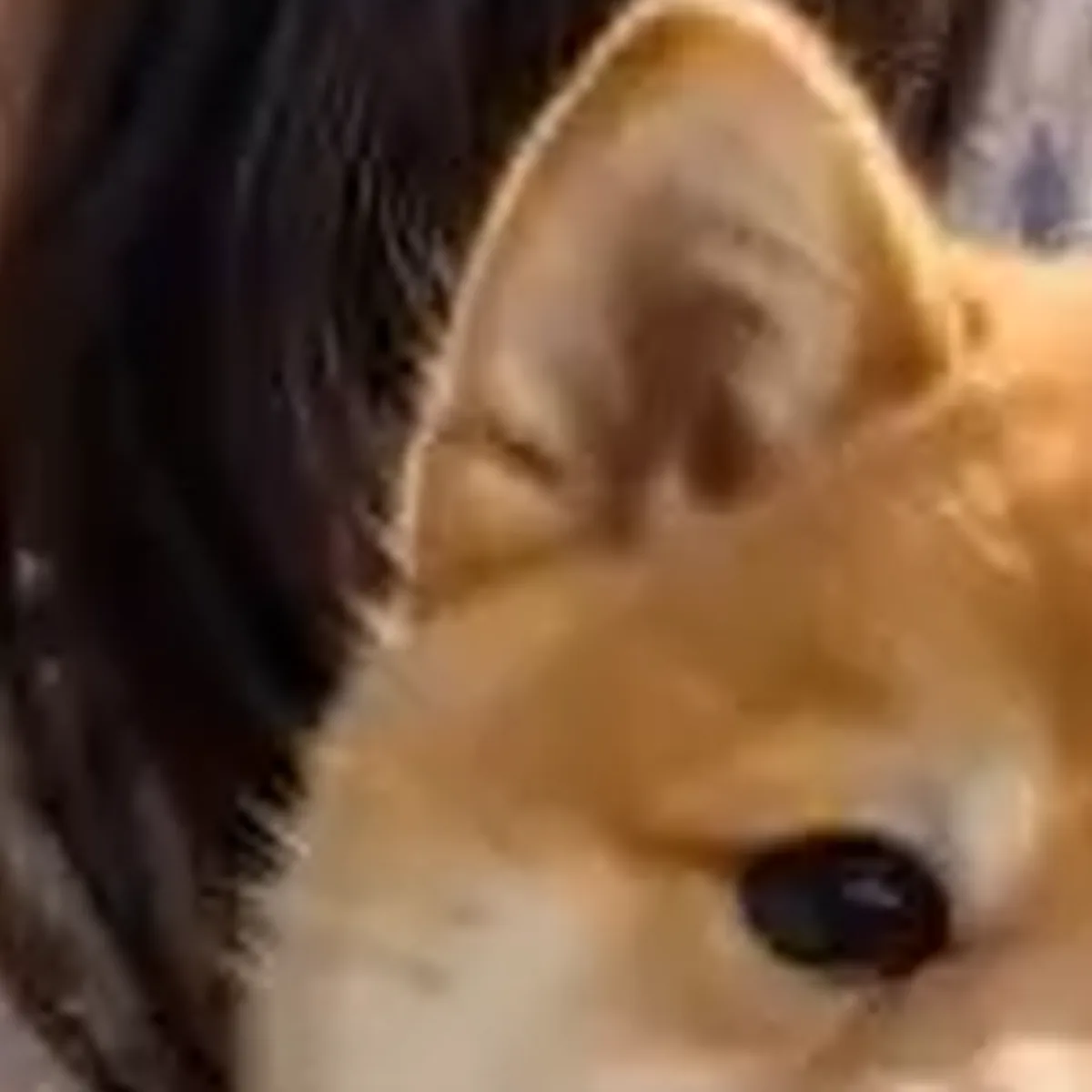
The same video frame, enlarged to the same 7200×10800 px for a fair compare.
Left is a general image resize only. Right is WishMallet Save in high quality with AI enhancement.
Drag the centre bar to compare. The whole image stays natural, while the details show the difference.
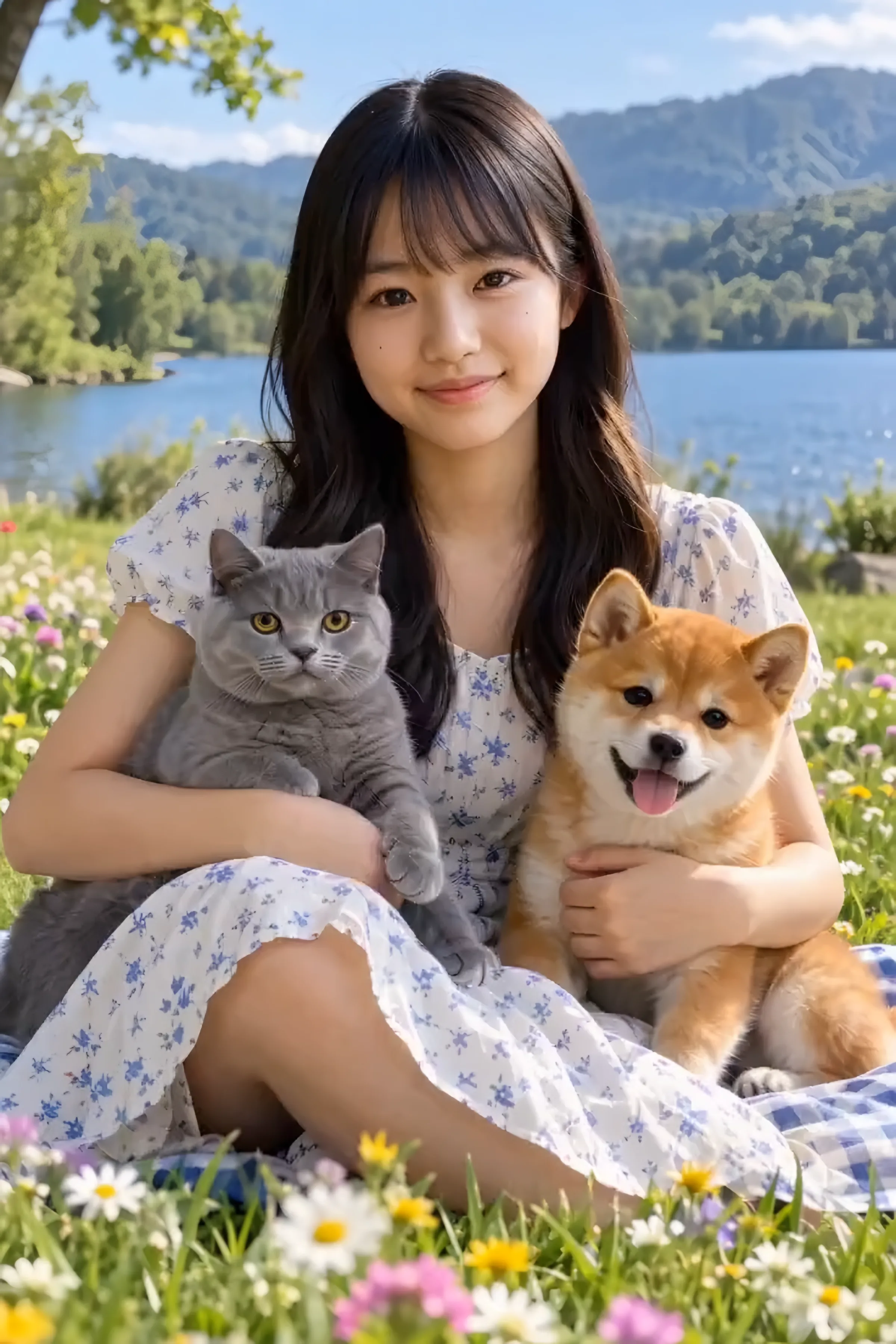
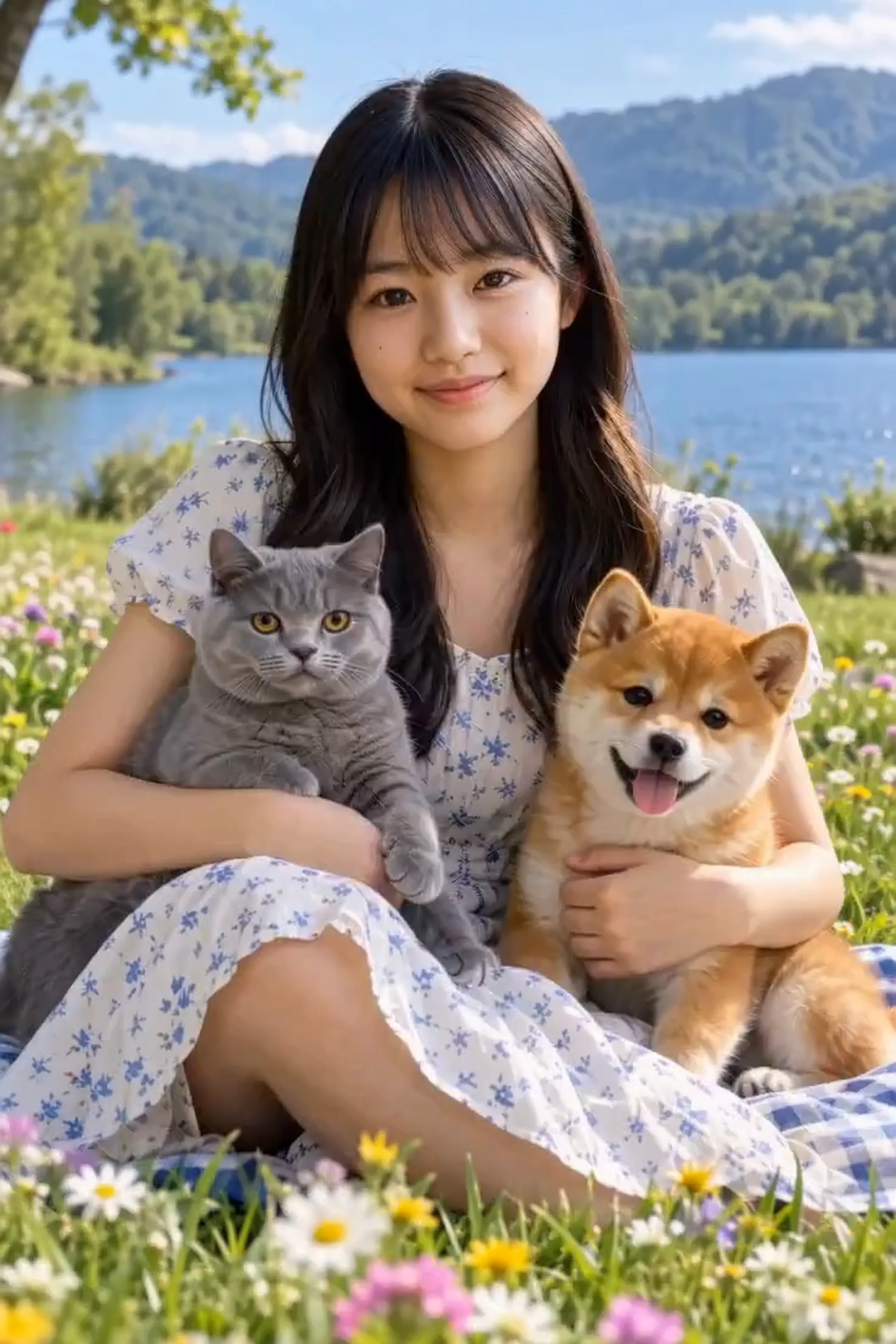
Natural mode keeps the original feel, while hair, fur and fabric patterns make the difference easier to see.
When the full image is shrunk to fit the screen, the difference looks small.
Zooming into hair, fur or fabric patterns makes the plain enlarge and AI enhancement easier to tell apart.
Natural overall, with clearer differences in the details.
Compare lashes, bangs and other face details.
Look at the eyes and soft fur texture.
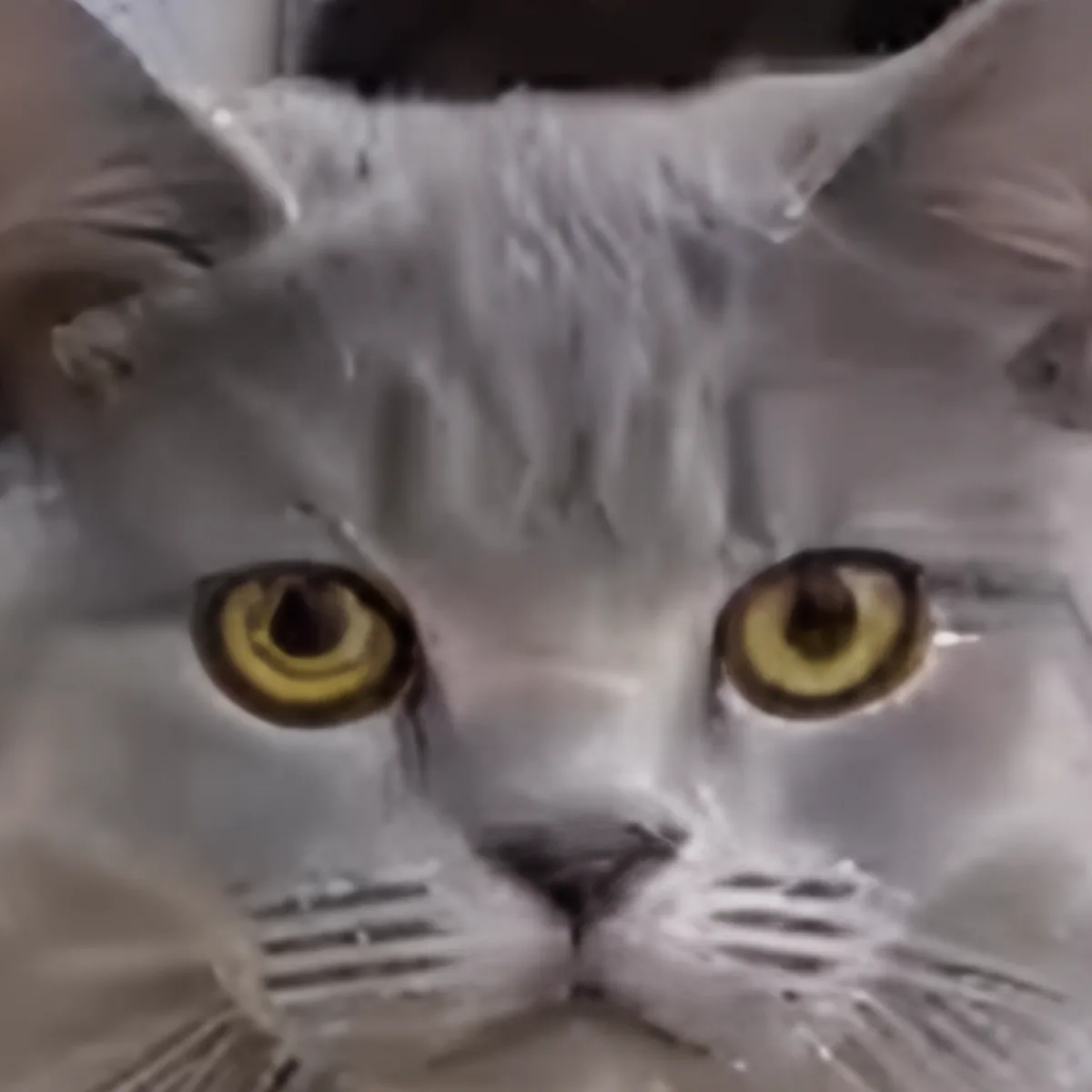
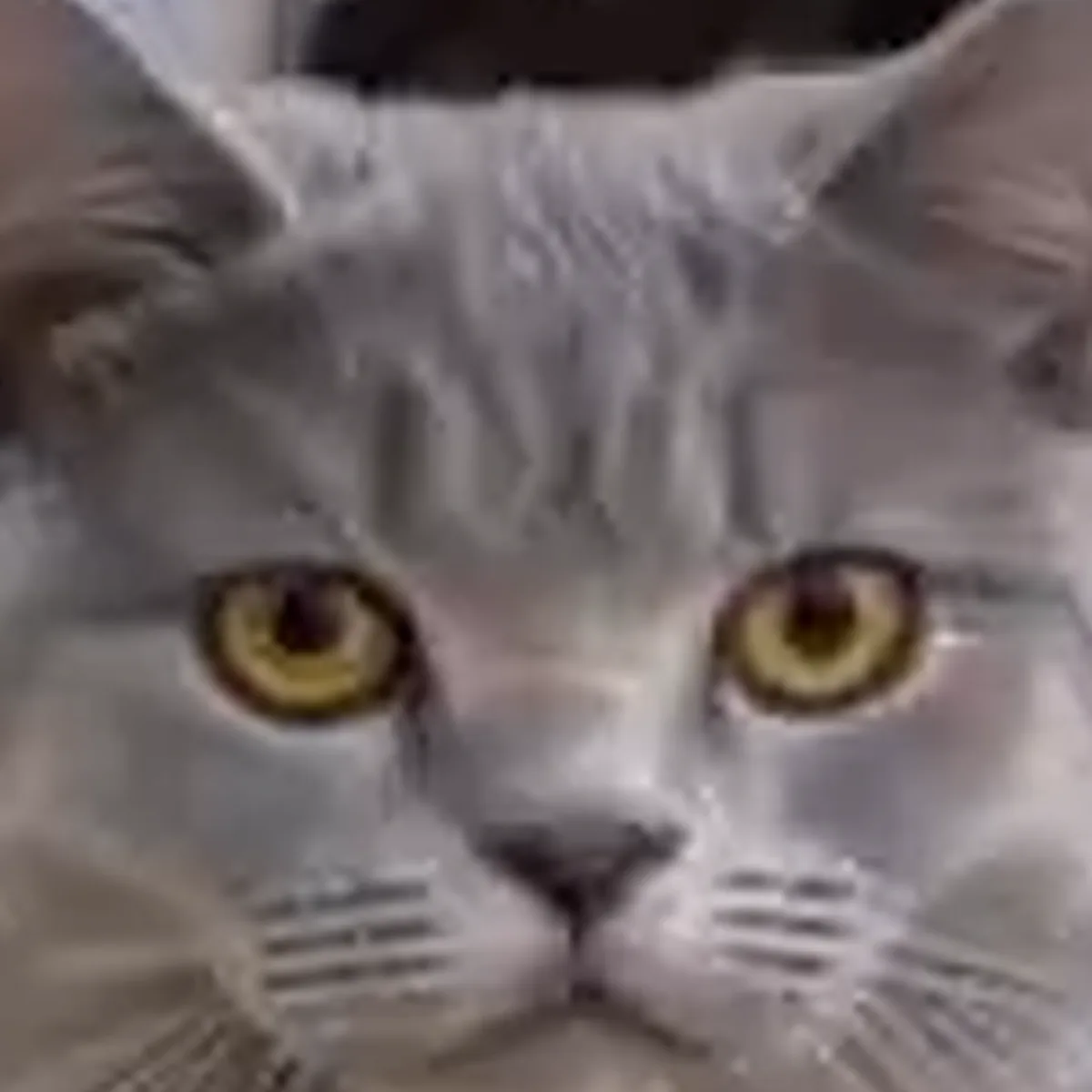
Check the ear outline and fine fur strands.
You do not need to look up pixel sizes. Choose the use, and WishMallet sets the size.
7200 × 10800 px
Best when you are not sure of the final use yet.
1600 × 2560 px
For a Kindle Store cover.
1838 × 2775 px
A common size for Amazon KDP paperbacks.
7200 × 10800 px
For large posters and photo sales.
5400 × 7200 px
For art you frame and hang.
7016 × 9933 px
For print from A4 to A1.
Choose Kindle, KDP, poster, framed art and more. No hard image-size maths.
Rather than a plain stretch, AI fills in edges and detail. Choose photo or anime/illustration processing.
No upload to an external service. Upscaling and saving stay on your computer.
🌿 Natural
Start here if unsure
Keeps the feel of the original video while enhancing. Good for people, faces and photos.
✨ Sharp
Better when you want hair, clothes, buildings or illustration detail to stand out.
For very small faces, Natural often looks cleaner.
Keep a large 7200 × 10800 px file and adapt it later for many uses.
No need to dig up the video again and run high-quality save a second time.
Those steps usually take several tools. In WishMallet you just choose a use and save.
Typical path
WishMallet
Choose a use and save
Open Save in high quality from the Best Shot Album and choose a use. Start with the 7-day free trial to explore the screens.