
MOTION COMIC
Motion comics made simple.
Turn a single comic page into a vertical short where only the panel you are reading moves and speaks. Lay a mask image with that panel made transparent over the video, and the rest stays still—no specialist software required for TikTok or YouTube Shorts.
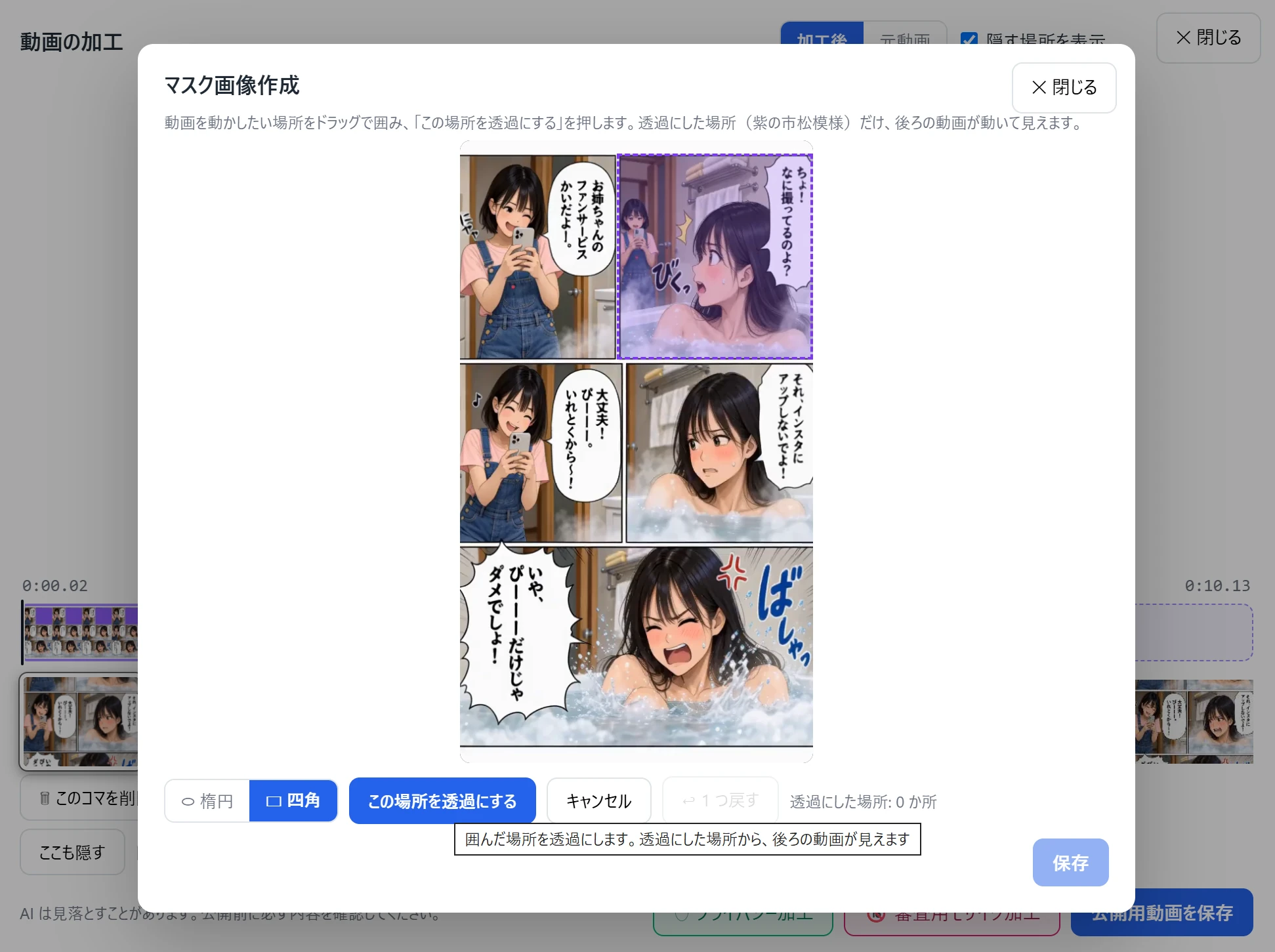
1. In Create Mask Image, make the panel you want to move transparent.
Open Create mask image from this frame in Video Editing. Drag around the panel (ellipse or rectangle), then Make this area transparent. The purple checkerboard is the “hole” where the video shows through. Add as many areas as you need, undo if needed, then Save to place a PNG on the mask strip.
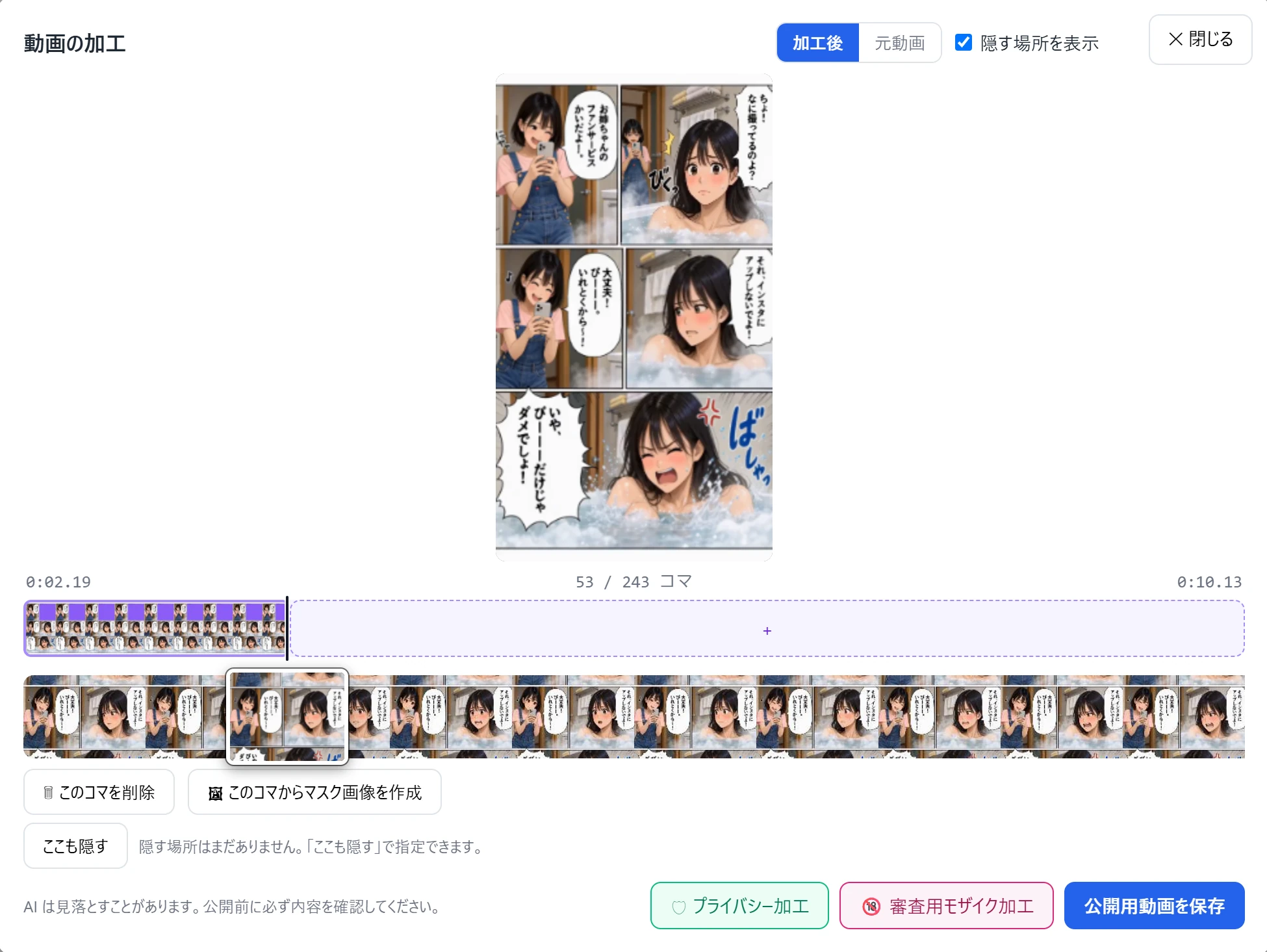
2. After the mask is set, Video Editing looks like this.
Saved masks appear as purple bars above the frame strip. Only inside the transparent panel does the video move; other panels stay still. Drag the ends of each mask to match timing, click the video to preview, then save a separate video to share. That is the path from Create Mask Image to a finished motion comic.
- 01
Why do you need a mask image?
Even if you ask AI to move only one panel, the same character’s face in other panels may move too. A still picture with only the panel you want transparent lets the video show through there alone, while the other panels stay still.
- 02
Start from a comic page.
Add the page as a reference image and choose vertical 9:16. Describe motion, expression and dialogue, and note a fixed camera so the mask stays aligned.
- 03
Open Create mask image from this frame.
Go to History → Thumbnail Viewer → Video Editing, then Create mask image from this frame. Repeat in reading order—top to bottom, right to left within a row—once per panel you want to animate.
- 04
Outline the panel and make it transparent.
In Create Mask Image, choose ellipse or rectangle, drag around the panel, then Make this area transparent. Purple checkerboard marks the cut-out. Save places a PNG on the mask strip over the video.
- 05
Match the timing, then save to share.
Drag the ends of each mask on the strip—about two to three seconds per panel. Preview, then save a separate video to share while keeping the original.