


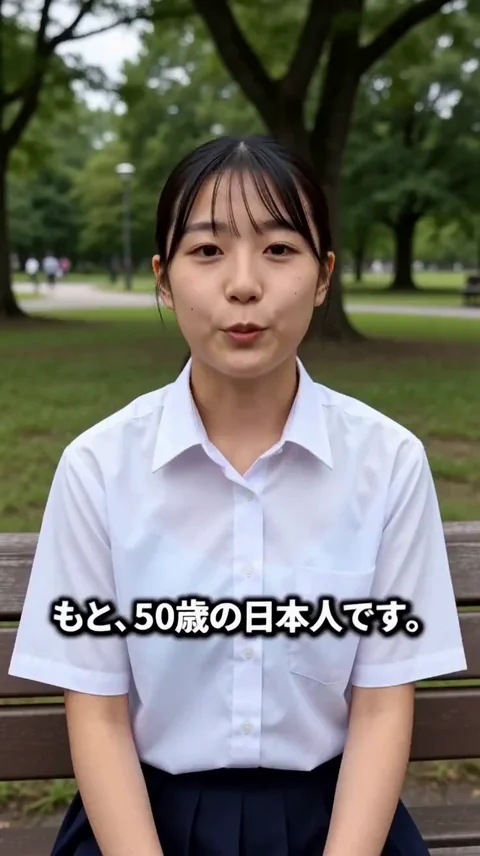
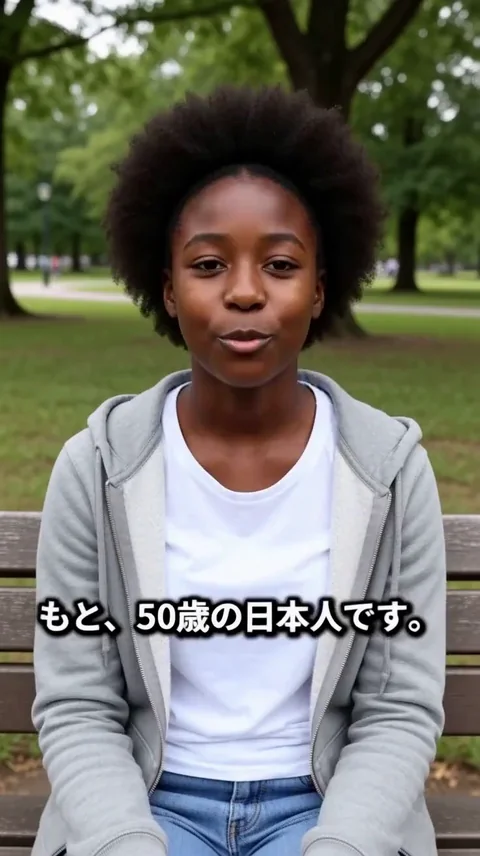

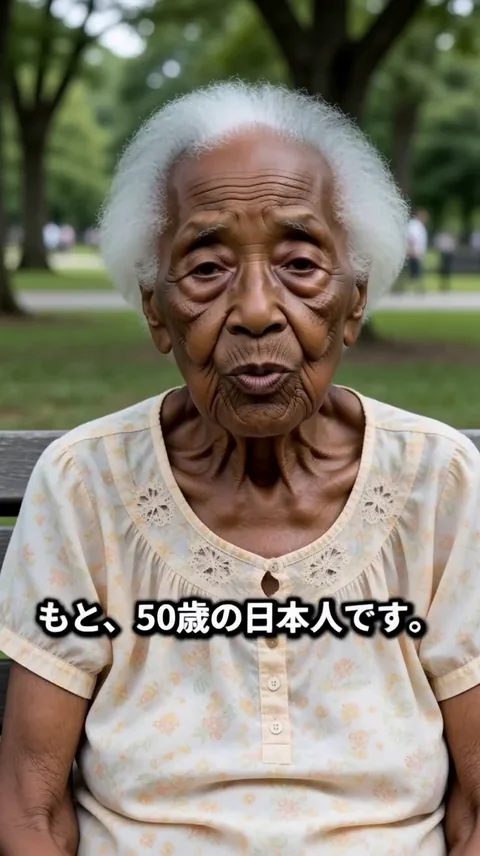
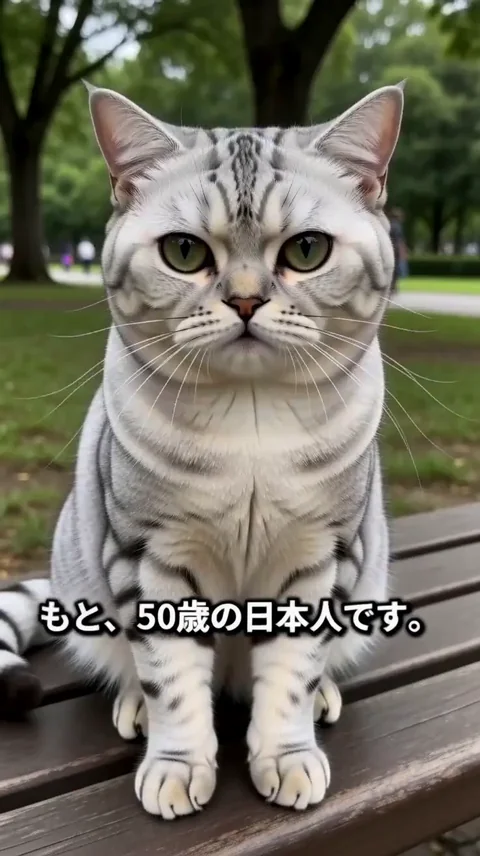

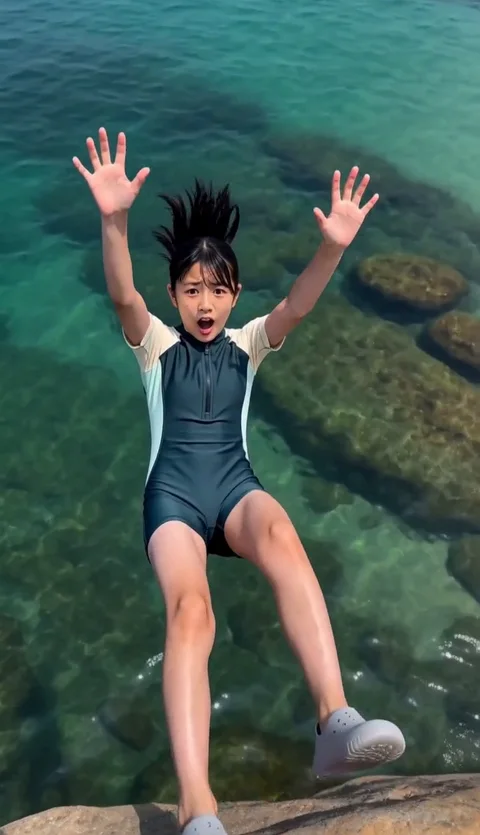
One prompt. Any scene you can imagine.All you need is “your imagination.” …That’s all.

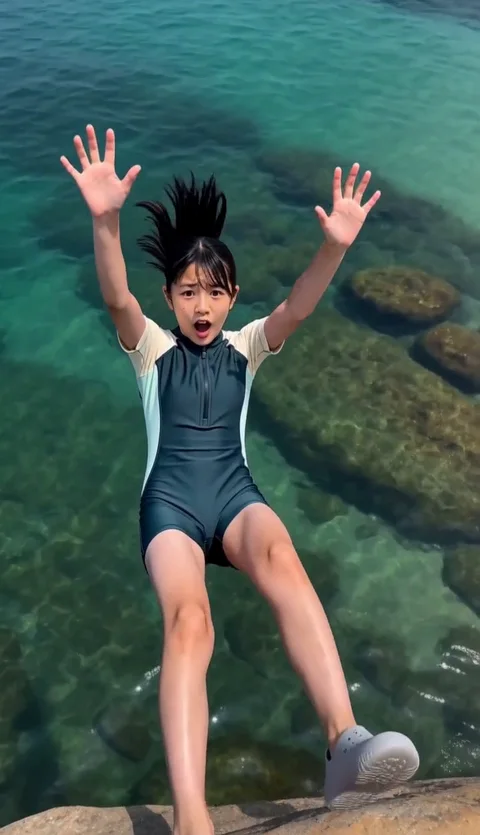
Tsumugi falling from a cliff towards the sea — play the video

Hollywood-classvideo is yours.

Tsumugi’s source photo — open in a new tab

Start withjust one photo.

Tsumugi in a motion-comic style video — play the video

Motion comicsare yours too.

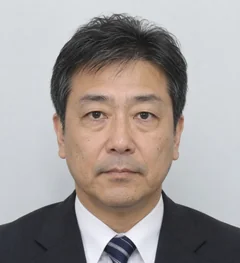
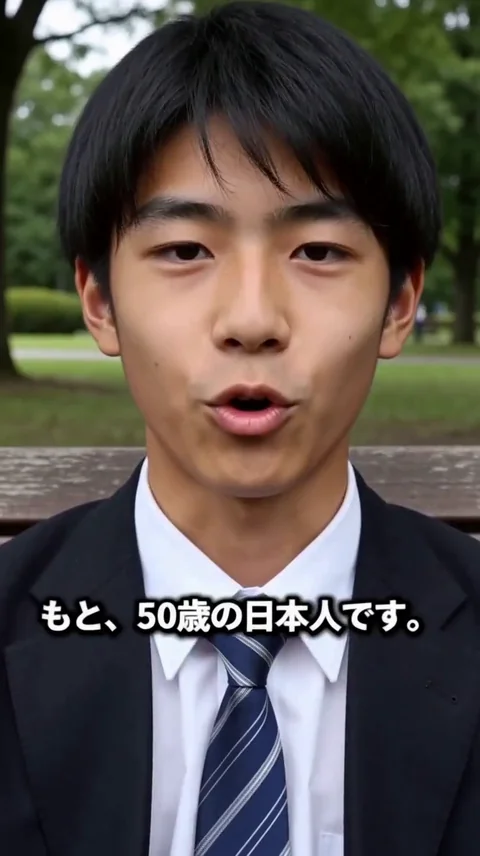
Source photo of a 50-year-old Japanese man — open in a new tab

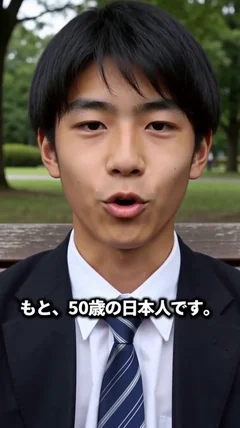
A photo + a voice.Become anyone.

🔒 No Cloud. No Uploads. No ComfyUI!

TSUMUGI’S LITTLE CINEMA

Give a photo motion. And a story.

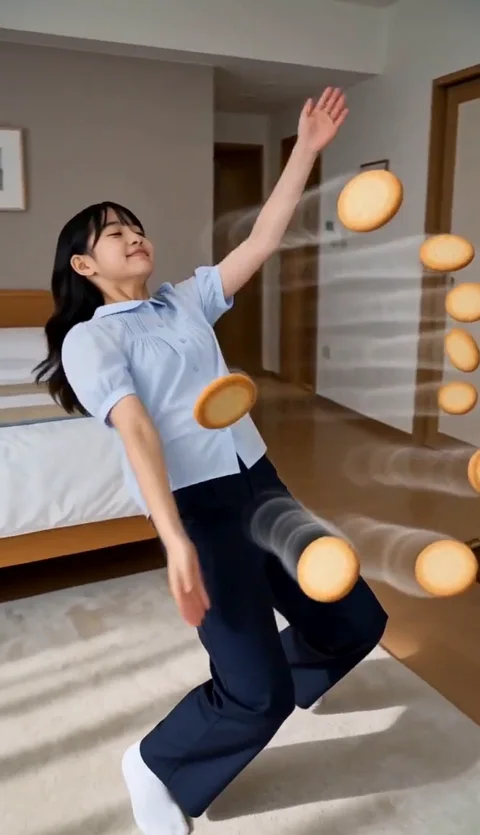
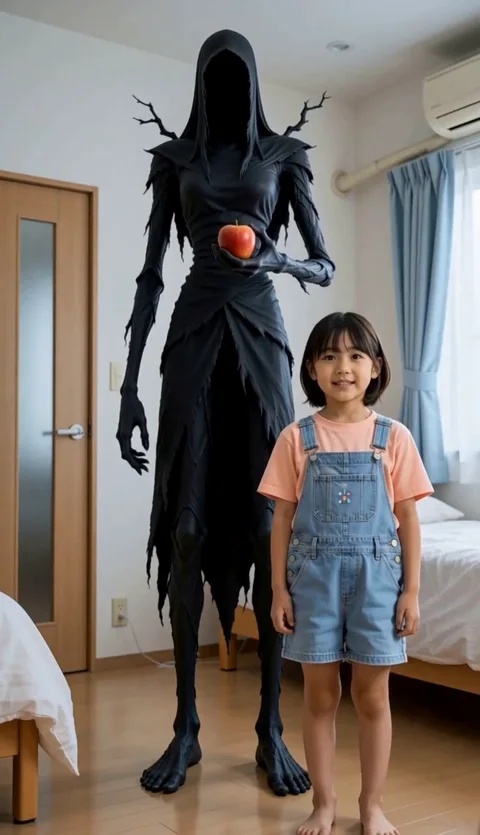
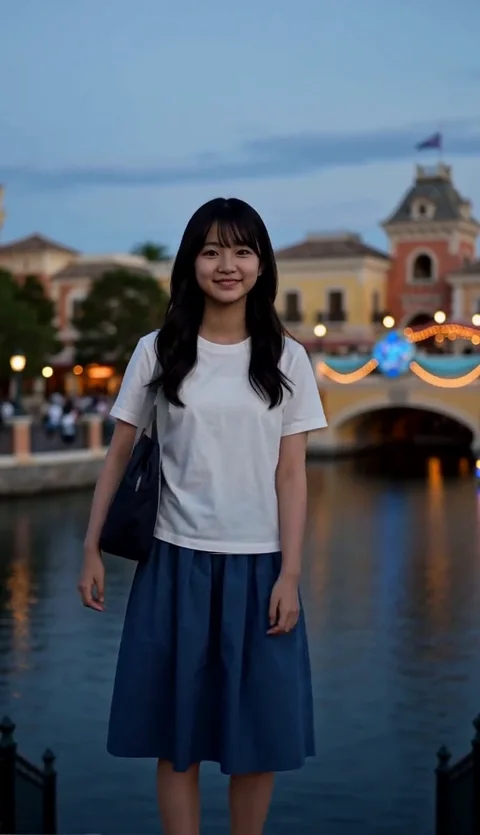
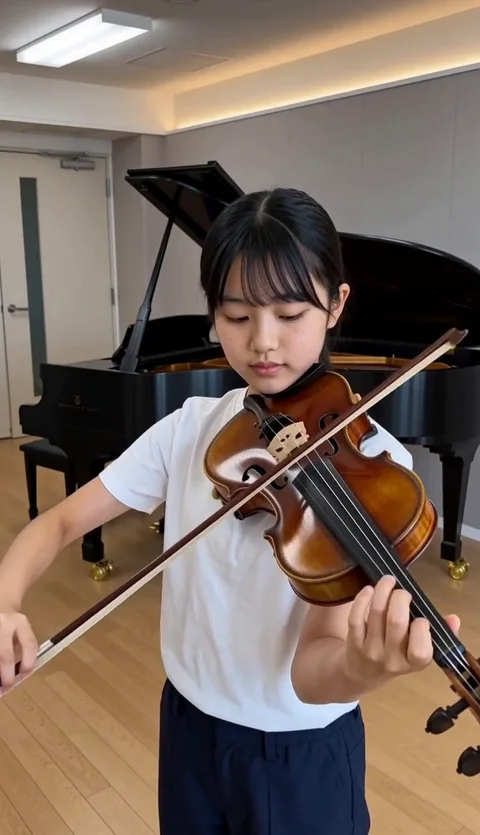
Explore the cinematic effects you love. These eight playful “Tsumugi’s Extraordinary Everyday” Reels were actually created with 『Tsumugi's🔨WishMallet』 and published on Instagram. Each comes with ideas for your own first scene.

08REELS / CINEMATIC IDEAS

One prompt with 『Tsumugi's🔨WishMallet』!All eight videos were generated from a single prompt in WishMallet.

All Reels were generated with MiniMax H3. Values are the creator’s generation settings; edited Instagram running times may differ. Zero audio references does not mean silent output. Results vary with references, prompts and settings.

From enjoying a scene to creating your own.Explore the three steps

INSIDE WISHMALLET

One photo.
A whole new you.

What if you were 16 again? Or 100? From age, gender and appearance to becoming a cat or an anime character, you can easily create “what-if” videos.

Explore the transformationsReal generated videos and a three-step guide
Original photo of the 50-year-old man

START WITH ONE PHOTOIt all starts with this photo.

Rejuvenation
Rejuvenation
Infancy
Infancy
Anime self
Anime self
See what happens next.

Even vague instructions are fine — AI automatically refines them into officially recommended prompts!

1Say what you want to see.

A beautiful female samurai quietly readies her sword in a storm of cherry blossoms

2Press one button.

Auto prompt

3A beautiful scene is ready.

MORE WAYS TO CREATE

Keep creating, after generation.

Keep a favourite expression. Share your work. Create another scene. Discover more ways to enjoy what you make.

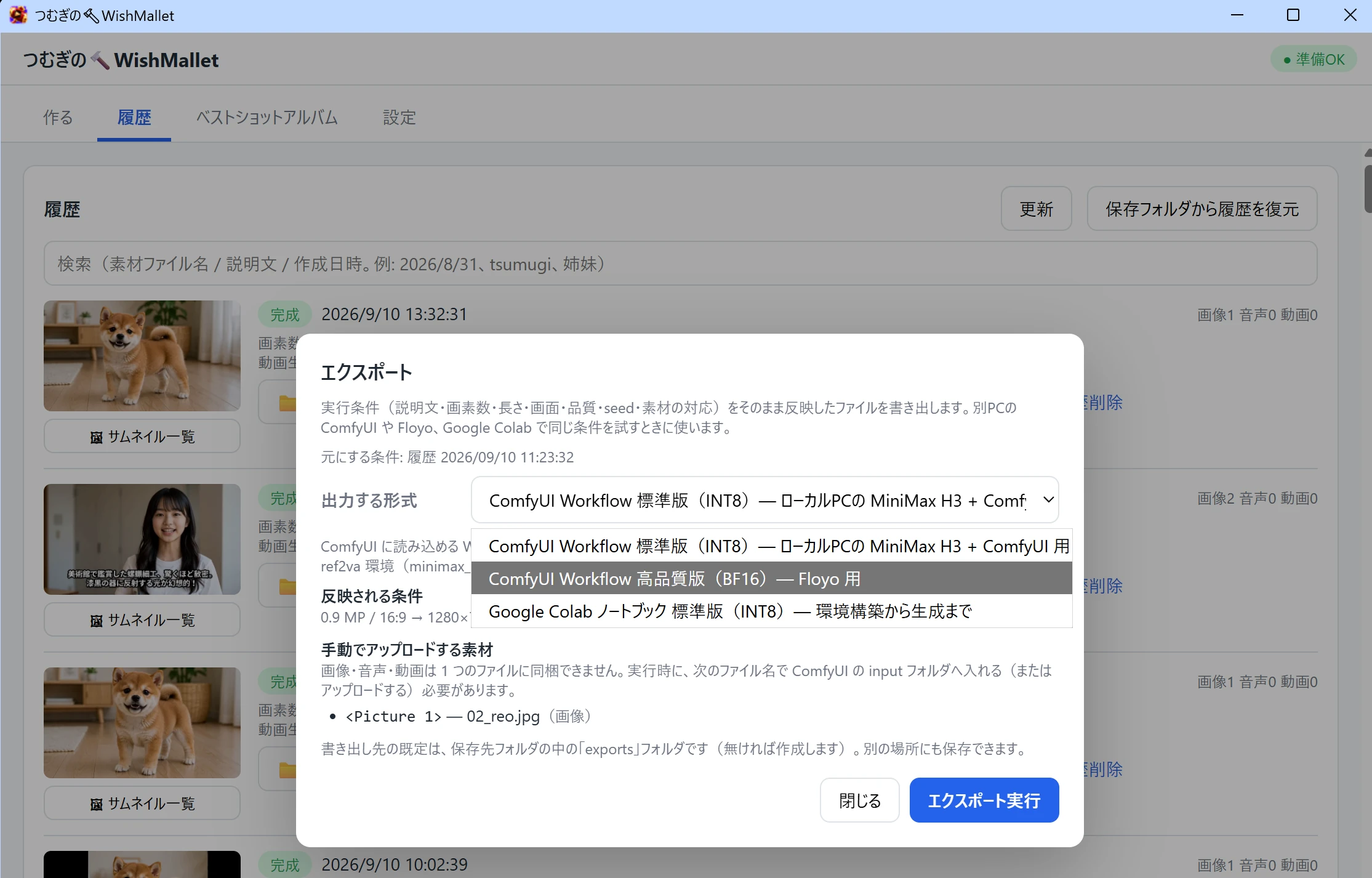
WishMallet export screen with formats for Google Colab, Floyo and ComfyUI.

Export

More places to bring your ideas to life.

Take your favourite video settings to another PC or the cloud. Spend less time retyping and more time creating your next scene.

Explore the feature
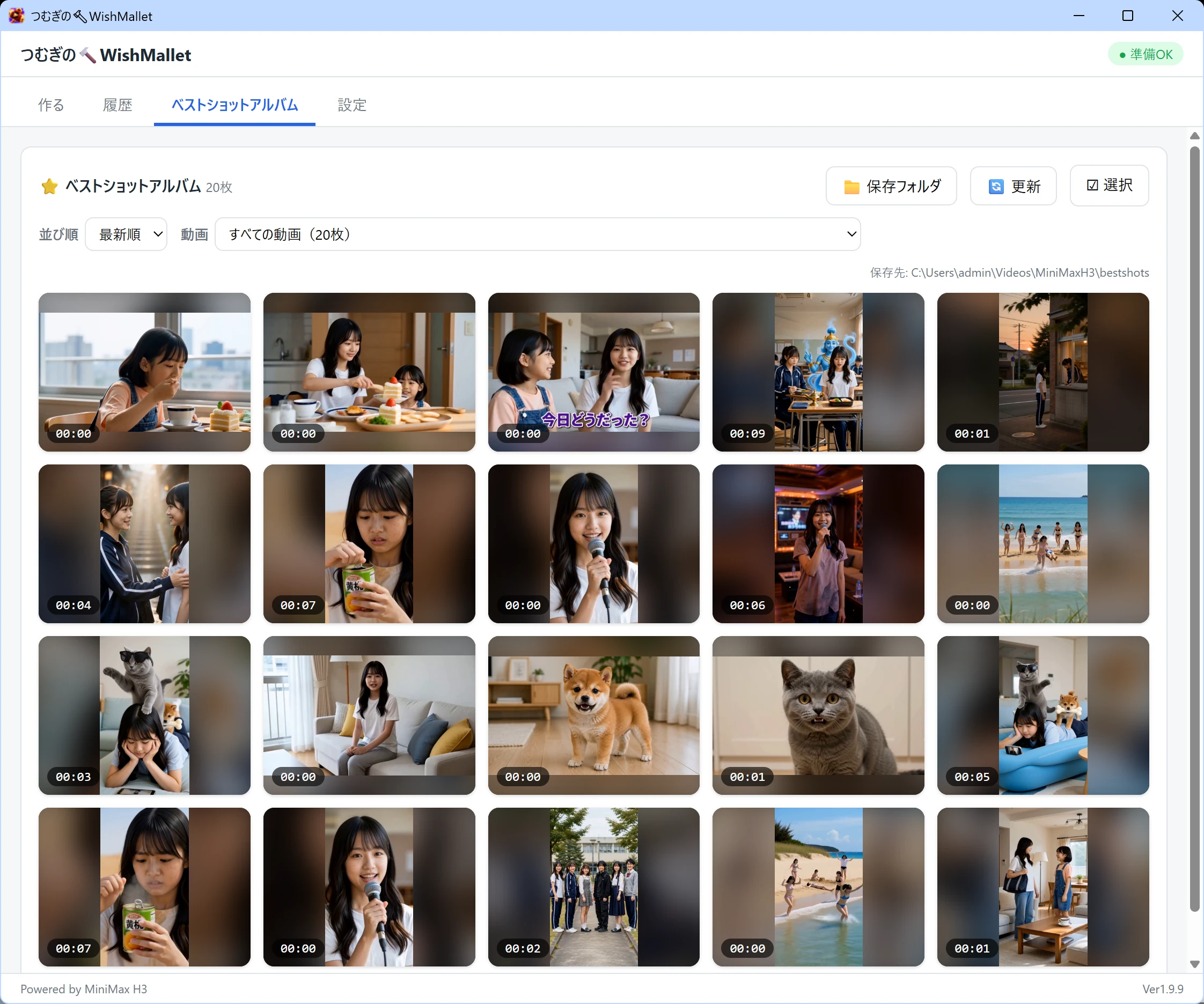
WishMallet Best Shot Album with favourite moments from several videos arranged as photos.

Best Shot Album

Turn a moment into a collection.

A lovely expression. A scene you got just right. Save favourite moments as photos and enjoy them together in your own album. Enhance a chosen frame with AI and save a large PNG for a book cover or poster.

See album and high-quality save
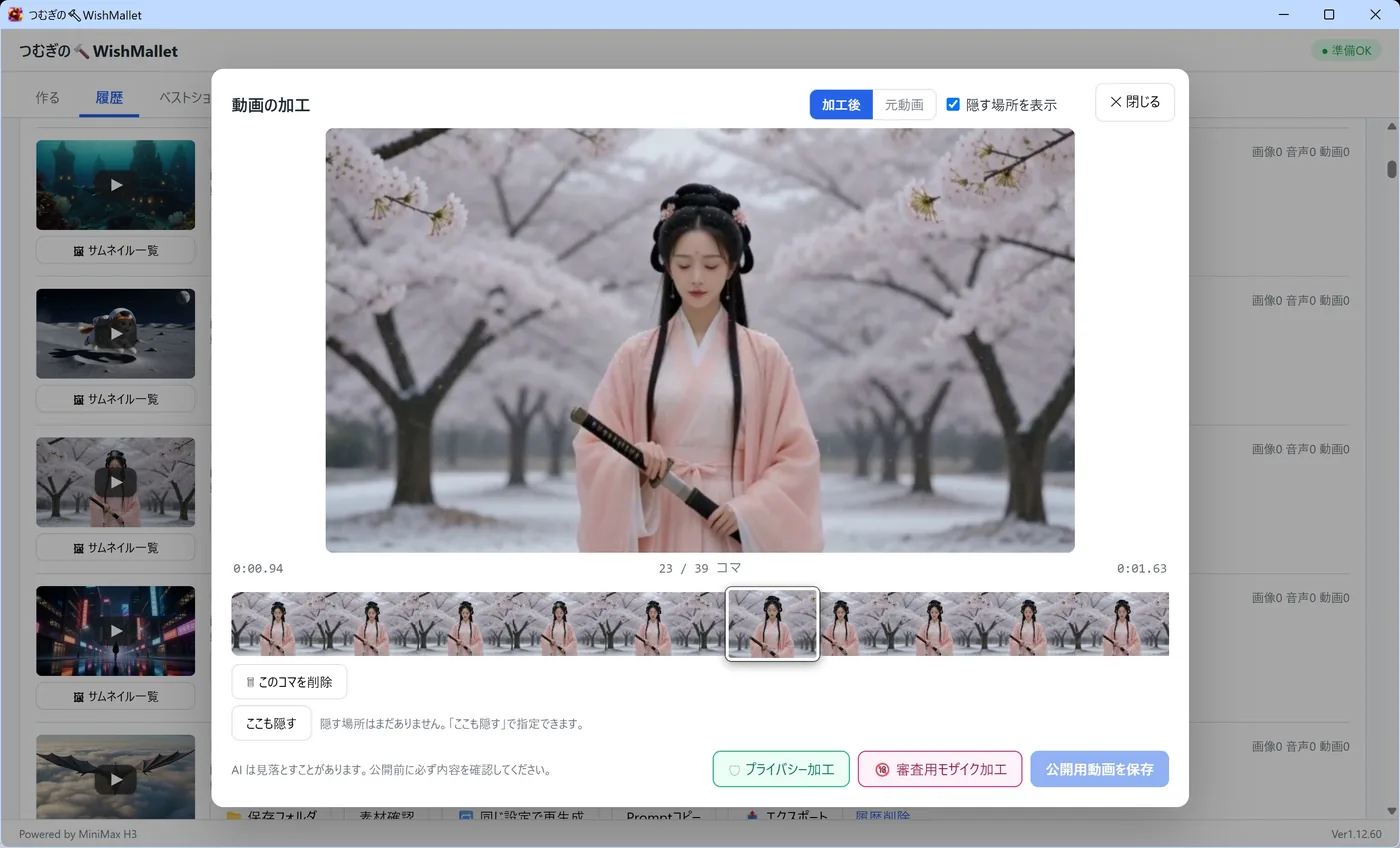
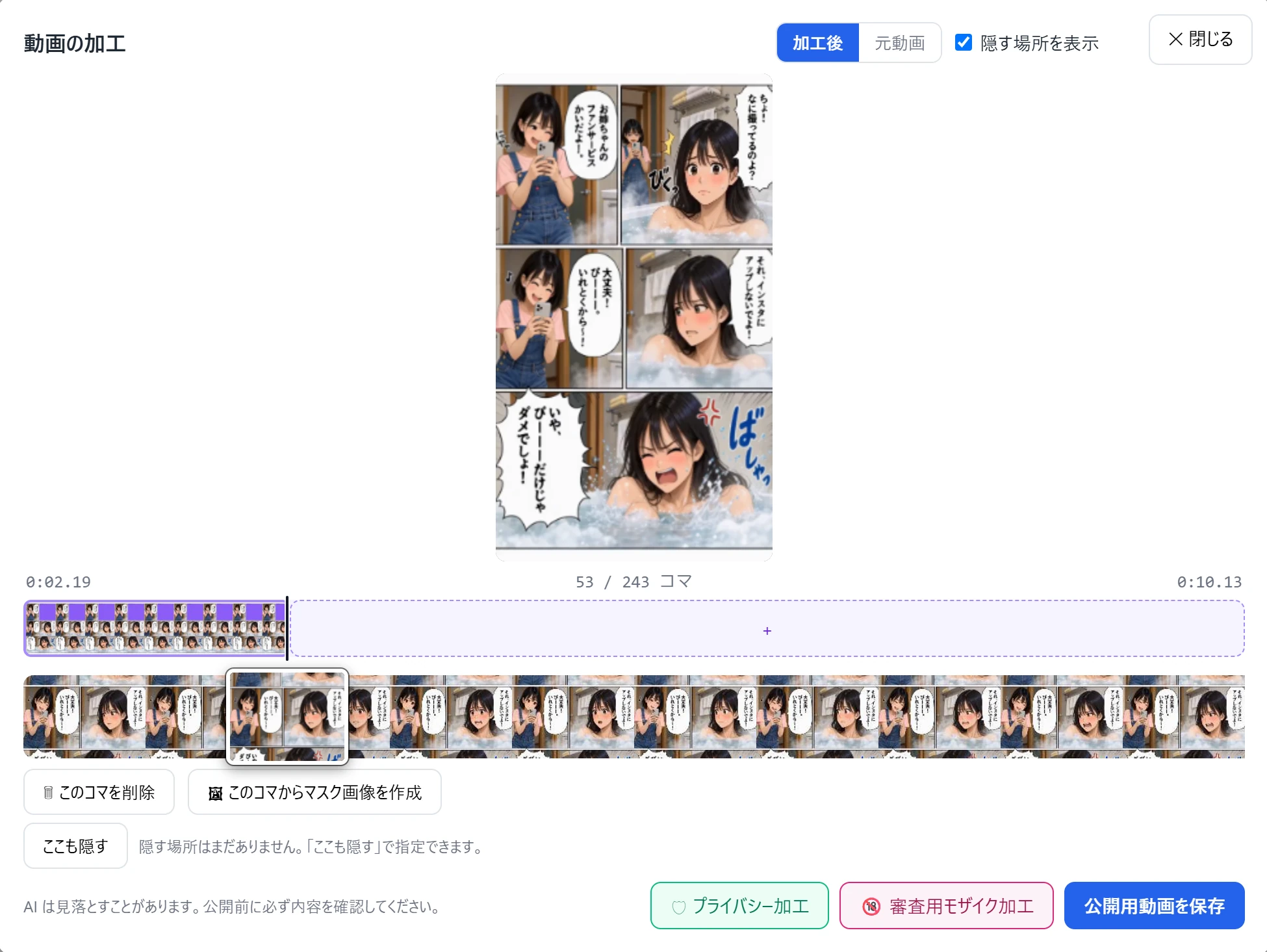
WishMallet Video Editing after a mask is applied, checking a comic page where only the panel being read moves.

Motion Comic

Motion comics made simple.

Turn a single comic page into a vertical short where only the panel you are reading moves and speaks. Lay a mask image with that panel made transparent over the video, and the rest stays still—no specialist software required for TikTok or YouTube Shorts.

See how it works
Full Privacy Processing screenshot showing four target categories, processing strength, automatic review and advanced settings for methods and coverage.Full Review Mosaic Processing screenshot showing FANZA Doujin and DLsite options, strength, guideline details, additional areas and the automatic processing button.

Privacy & Review Mosaic Processing

Prepare your creation to be shared with care.

Hide faces, whole people, sensitive body areas or licence plates with Privacy Processing, or choose publishing-platform presets with Review Mosaic Processing. Both open from buttons in Video Editing.

Explore the feature

LESS SETUP. MORE CREATION.

You just wanted to make a video.

Does getting MiniMax H3 running feel harder than creating the video itself?

  • A day spent on setup.

    Python, CUDA, model folders. You came to make a video, but are still preparing.

  • Too many starting points.

    Which model? Which workflow? Research keeps getting between you and your idea.

  • Stopped by a wall of nodes.

    An unfamiliar web of connected boxes. It is hard to know where to begin.

A CLEARER WAY TO START

A simpler path to your first creation.

『Tsumugi's🔨WishMallet』 gives MiniMax H3 a Windows interface. Create through the app without building node workflows.

BEFORE

Setting everything up yourself

A puzzled creator surrounded by installation components, competing settings and tangled nodes, struggling to begin making a video.

Running a large AI model such as MiniMax H3 on a local PC takes more than simply installing it. WSL2, CUDA, Python, SGLang, quantization, GPU memory, and other technical components must work together correctly. Even experienced engineers may need several hours to half a day, or more than a day if problems arise. Without prior expertise, researching and setting it up can take several days to over a week. This is not an environment anyone can use immediately: building it requires advanced knowledge and time.

These are the settings and dependencies that need to be configured when building the environment.

The stack has to be built while checking compatibility across OS, GPU, CUDA, libraries, models, and VRAM settings.

A mismatched combination can fail to start, stop mid-run, or become extremely slow.

AFTER / WITH WISHMALLET

An interface for creating video

One clear path connects an automatic PC check, installation, a guided photo and prompt, and video generation. A smiling creator watches the finished cat video.
  1. Automatically check your PC
  2. Automatically install the full environment
  3. Write the description with Guided writing or Auto prompt
  4. Press the Generate video button

Automatic installation prepares the generation environment on first use. In-app diagnostics help you check readiness.

YOUR FIRST VIDEO

Prepare. Describe. Generate.

A clear sequence of actions takes you toward your first video.

  1. 01Prepare

    Begin with your PC.

    Automatically check your hardware, then follow the app to automatically install WSL2 and the generation environment.

  2. 02Describe

    A photo. An idea. Your words.

    Add a photo and a description in the Create tab. The guided prompt builder helps you put your idea into words.

  3. 03Generate

    Let your PC take it from here.

    Choose length and quality, then select Generate video. The finished video is saved and can be played in the app.

Rendering time depends on your GPU, video length and quality settings.

Read the guide

NO NODES. NO WORKFLOWS.

Your idea comes first.
No nodes to learn.

『Tsumugi's🔨WishMallet』 does not use ComfyUI internally. Its interface focuses on creating video with MiniMax H3.

No ComfyUI installation required

No node connections. No workflow hunting.

  • 01

    Find the words for your idea.

    Answer the guided prompt builder’s questions. “Auto prompt” can build a description from just a few words.

  • 02

    Keep working from where you left off.

    History stores results and settings. Load the same setup, make small changes and try another version.

  • 03

    Put your GPU to creative use.

    Generate video and audio on your Windows PC’s NVIDIA GPU. Turn compatible hardware into your local AI workspace.

A closer look at the engine

An example ComfyUI-based setup

  1. GUI
  2. Node Workflow
  3. ComfyUI
  4. Model

『Tsumugi's🔨WishMallet』

  1. Windows UI
  2. SGLang
  3. MiniMax H3
  4. Your GPU

SGLang runs MiniMax H3 inside WSL2 on Windows. ComfyUI is a powerful option for flexible custom workflows. WishMallet is for people who want to create with MiniMax H3 without starting by learning nodes.

BEFORE YOU BUY

Will it work on your PC?
Find out before you buy.

Use the browser-based compatibility checker to review your hardware before making a purchase.

Open the checker on the Windows PC you plan to use.

Think a GPU is too expensive?Could a JPY 500,000 GPU cost less?Compare cloud generation costs with a local GPU. Calculate the difference for your workload.Compare costs

Hardware at a glance

For local generation on a compatible NVIDIA GPU.

Minimum and recommended hardware based on the PC checker
ComponentMinimum guidelineRecommended
OSWindows 11 (64-bit)Windows 11 (64-bit)
GPUNVIDIA GeForce RTX 30 series or newerRTX5060 Ti / 5070Ti 16 GB or newer
Video memory (VRAM)12 GB or more16 GB or more
System memory (RAM)64 GB or more96 GB or more
Free storageAllow around 120 GiB170 GiB or more
CPU6 cores / 12 threads or more8 cores / 16 threads or more

The GPU must support Compute Capability 8.6 or higher. Check the exact model and VRAM capacity. AMD and Intel GPUs are outside this app’s supported configuration.

WSL2 and the generation environment require initial setup. The help lists 105 GB of free storage; the checker uses around 120 GiB as a minimum guideline. Allow extra space for additional models and saved videos.

This is an approximate browser check. Some values, including RAM and free storage, may need manual input. The browser cannot verify drivers or WSL2 readiness. Use the app’s environment diagnostics for the final readiness check.

Help with environment preparation

YOUR OWN CREATIVE STUDIO

Your computer.
Your creative space.

A downloadable video creation app for your own Windows PC. Access MiniMax H3 through a focused, approachable interface.

  • 🔒 No data uploads. No cloud storage. No ComfyUI required. Everything runs locally on your PC.
  • 🎬 Turn a single photo into the video you imagine.
  • 🔰 Beginner-friendly: the “🧭 Easy creation guide” and “✨ Auto prompt”.
  • 🔁 Easily recreate videos using the same settings from your history.
  • ☁ Easy export for high-performance GPU cloud environments, with support for Google Colab & Floyo.
  • ★ Save your favorite video moments as images with the Best Shot Album feature.
  • 🛡 AI-powered automatic privacy protection.
  • ▦ AI-powered automatic mosaic processing for content review, compatible with Japanese adult content sales platforms.

『Tsumugi's🔨WishMallet』

Powered by MiniMax H3

Downloadable software for Windows 11

Start with 7 days, free.

Download WishMallet for free and try it for 7 days.

  • Windows 11
  • NVIDIA GPU
  • VRAM 12 GB or more
  • 105 GB or more free space
  • Up to 3 videos a day during the free trial

Gumroad sells the full version licence (an activation code). The app itself is downloaded free from this site; entering the code unlocks the full version.

GOOD TO KNOW

Before you begin.
Your questions, answered.

A few helpful answers before your first video.

Read the guide
Can I try it before buying?

Yes. There is a 7-day free trial: download WishMallet from this site for free and start it without an activation code. During the trial you can generate up to 3 videos a day. To keep using it afterwards, buy a full version licence (an activation code).

Do I need to install ComfyUI?

No. WishMallet does not use ComfyUI internally. It runs MiniMax H3 through SGLang, without node connections or workflow editing.

Do I need Python or command-line knowledge?

Everyday video creation happens through the app. Initial WSL2 and generation environment setup still needs to be completed using the instructions. Preparation or troubleshooting may require commands.

Will it run on any PC?

You need Windows 11 and a compatible NVIDIA GPU. The guideline is at least 12 GB VRAM and 64 GB RAM, with additional requirements for the exact GPU model and free storage. Check your PC before buying. Mac, AMD and Intel GPUs are outside this app’s supported configuration.

Where do I get my first photo and prompt?

Use your own photo or try the included sample photos and voices. Start with a short description; the guided prompt builder and “Auto prompt” help you write it. Only use materials you have the right to use.

How do I prepare the models?

Install the inference environment and MiniMax H3 models inside WSL2 during initial setup. The app’s environment diagnostics help identify missing prerequisites. Prompt formatting and Turbo also download additional data on first use.

Do I need an internet connection?

Model downloads, licence registration and updates require internet access. Video generation runs on your own GPU. This does not mean every feature is always available offline.

How long does video generation take?

It depends on the GPU, video length, quality settings and reference materials. The app displays an estimated generation time. Initial preparation or restarting the engine takes additional time; no fixed rendering time is guaranteed.

How many PCs can I register with one code?

The current help specifies one PC per activation code. For moving to another PC or re-registration, contact the support channel provided with your purchase.

Where can I find help?

The dedicated help page covers basic operations and common problems. Settings → Support lets you save diagnostic information to send to the support contact provided with your purchase.

MAKE ROOM FOR YOUR IDEAS

Build your own private studio
— free and unlimited.

Download it free and try it for 7 days. You can also check whether this PC can run it.

『Tsumugi's🔨WishMallet』 · Windows 11 · Powered by MiniMax H3